N.E.S.T. User Guide
Access: nest.thephenom.app — requires GitHub membership in the phenom-earth organization and INT team.
1. Logging In
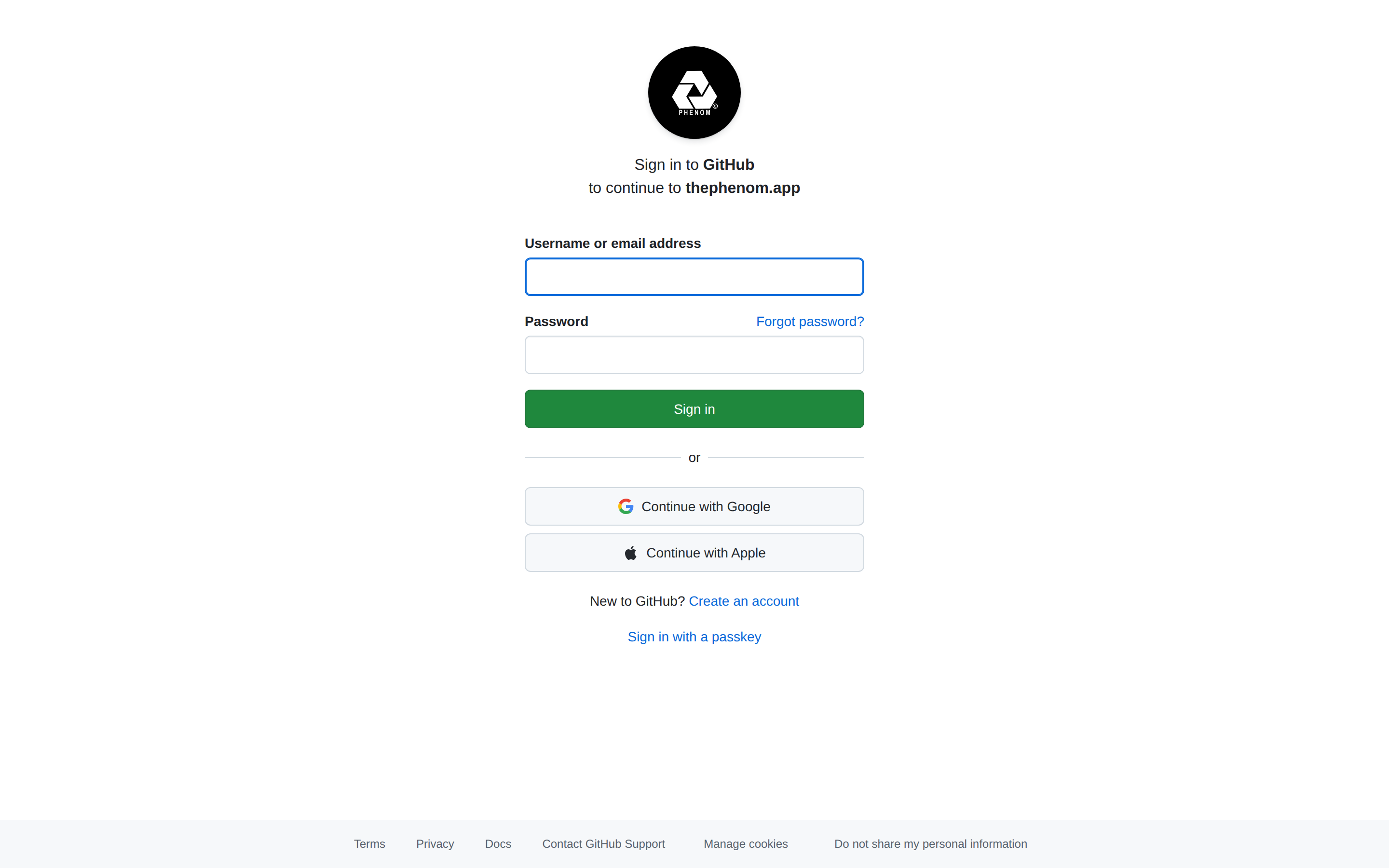
N.E.S.T. is protected by Cloudflare Zero Trust. When you navigate to nest.thephenom.app, you are redirected through GitHub OAuth.
- Click Sign in with GitHub on the Cloudflare Access page
- Authorize the Phenom application (first time only)
- Cloudflare validates your
phenom-earthorg membership andINTteam role - You are redirected to the N.E.S.T. login form
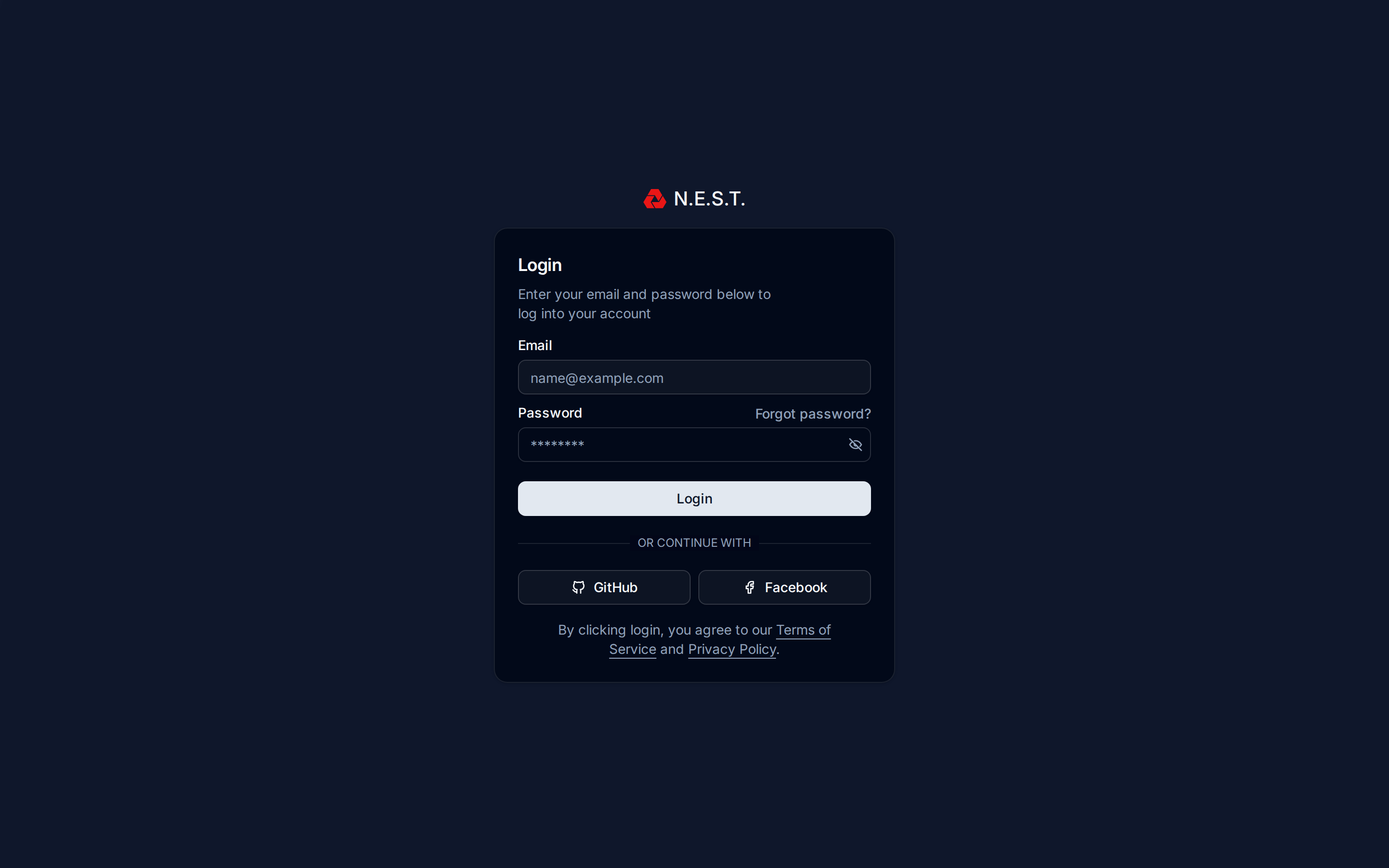
After Cloudflare authentication, the N.E.S.T. login form appears. You can sign in with email/password or continue with GitHub or Facebook OAuth.
Tip: If you see a “403 Forbidden” error, confirm your GitHub account is a member of the
phenom-earthorganization and theINTteam.
2. Dashboard Overview (3D Globe Map)
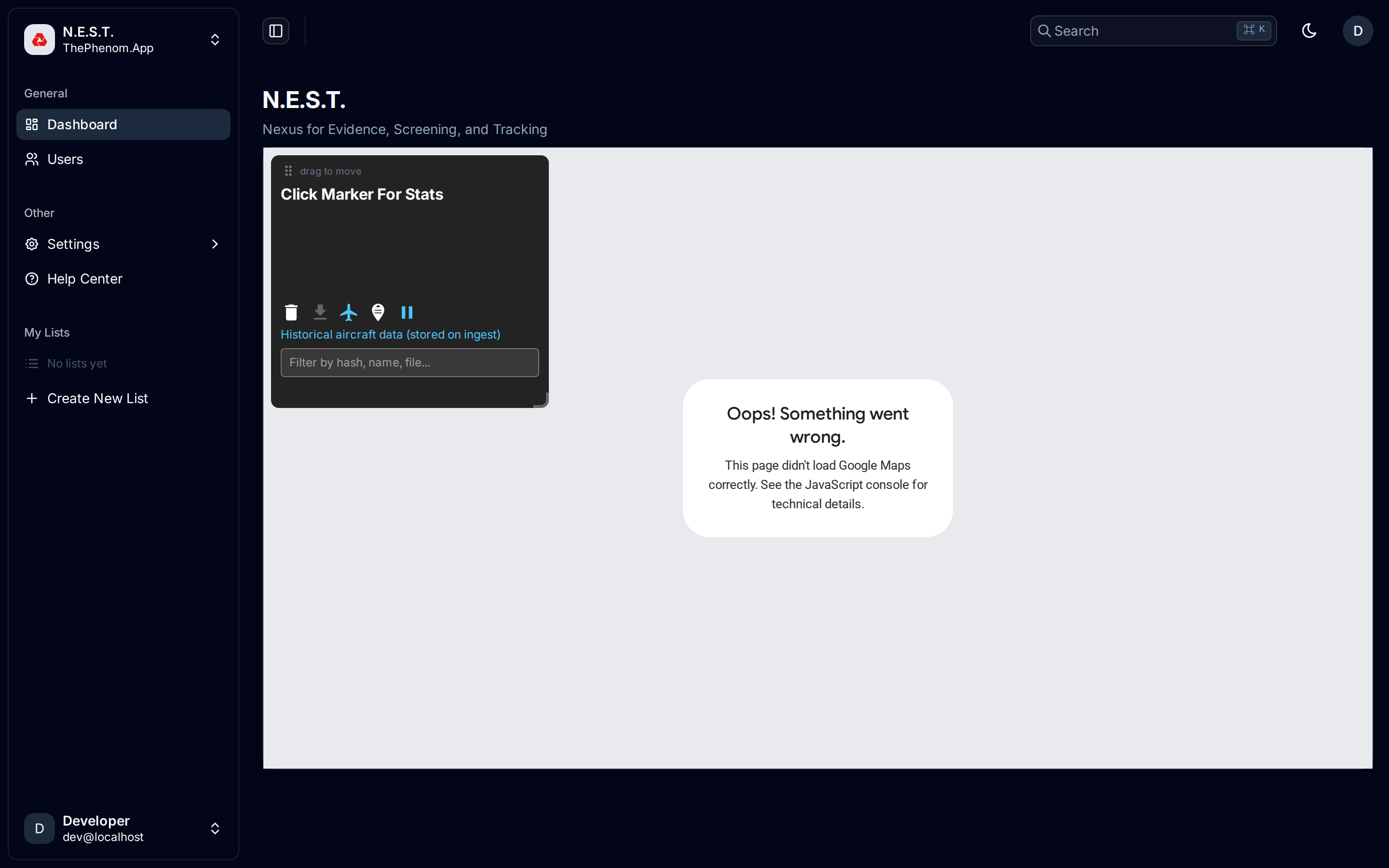
The main dashboard is an interactive 3D Google Maps globe showing all Phenom captures and Drop submissions as map markers. The full title — N.E.S.T.: Nexus for Evidence, Screening, and Tracking — is displayed at the top.
What You See
| Element | Location | Description |
|---|---|---|
| Sidebar | Left | Navigation: Dashboard, Users, Settings, Help Center, My Lists |
| Sidebar Overlay | Map area (top-left) | Draggable panel with marker stats, toolbar icons, filter input, and marker list |
| 3D Globe | Center | Rotating Earth with satellite imagery (15 degrees/hour real-time rotation) |
| Search Bar | Top-right | Global search with Cmd/Ctrl+K shortcut |
| Theme Toggle | Top-right | Moon icon to switch light/dark mode |
| User Avatar | Bottom-left | Profile menu, shared content, logout |
Interacting with the Globe
- Rotate: Click and drag to spin the globe
- Zoom: Scroll wheel to zoom in/out
- Click Marker: Select a marker to view its details in the sidebar overlay
- My Location: The globe centers on your GPS location (if browser permissions allow)
3. Drops vs. Phenoms
N.E.S.T. handles two distinct types of content submissions. Understanding the difference is essential.
Drops (Amber/Orange)
| Attribute | Detail |
|---|---|
| What | Static media (images) submitted from the field via the Phenom mobile app |
| Color | Amber/orange badges and highlights |
| Data | GPS location, sensor data (magnetometer, accelerometer), C2PA status, AI detection |
| Playback | Image thumbnail displayed in detail card |
| Icon | Pin emoji with location source indicator |
Phenoms (Cyan/Sky Blue)
| Attribute | Detail |
|---|---|
| What | Video streams captured from aircraft/drones during a phenom event |
| Color | Cyan/sky-blue badges and highlights |
| Data | Owner name, video URL, nearby aircraft (ADSB), GPS coordinates |
| Playback | Opens in the floating Video Player overlay |
| Icon | Owner name label |
How to Tell Them Apart
In the sidebar marker list, search results, and the Users page:
- Cyan badge = Phenom capture
- Amber badge = Drop submission
The Users page (see Section 13) shows separate stats and chart filters for each type.
4. The Sidebar Overlay
The sidebar overlay sits on top of the map and serves as your primary navigation for browsing markers. Visible in the dashboard screenshot above, it contains:
Sidebar Components (Top to Bottom)
- Drag Handle: Grab the “drag to move” bar to reposition the overlay anywhere on the map
- Stats Header: Shows “Click Marker For Stats” until a marker is selected, then displays the marker’s owner/filename, timestamp, and location
- Toolbar Icons (5 action buttons in a row):
| Icon | Action | Notes |
|---|---|---|
| Trash | Delete marker | Opens confirmation dialog |
| Download | Download media file | Grayed out if no marker selected |
| Airplane | Toggle Air Traffic | Shows/hides nearby aircraft. Cyan when active |
| Map Pin | Map Mode | Toggles between Satellite and Hybrid (with borders). Cyan when Hybrid |
| Pause/Play | Earth Rotation | Pause/resume the globe’s auto-rotation. Cyan when rotating |
- ADSB Status Line: Cyan text reading “Historical aircraft data (stored on ingest)”
- Filter Input: Type to search markers by hash, name, filename, or other metadata
- Marker List: Scrollable list (max 50 items) showing each marker with:
- Location icon (pin or satellite emoji)
- Filename or owner name
- Timestamp with relative time (“2 hours ago”)
- GPS coordinates
- C2PA status (cyan for trusted, amber for other statuses)
- AI detection indicator (if applicable)
Resizing
Grab the bottom-right corner handle to resize the sidebar wider or narrower.
5. Playing Videos
When you select a Phenom marker that has a video URL, a floating Video Player appears in the top-right corner of the map.
Video Player Controls
The player header contains all controls in a single row:
| Control | How to Use |
|---|---|
| Drag Handle | Grab the grip icon to move the player anywhere on screen |
| Play/Pause | Click the play/pause button to control playback |
| Speed | Click the slow-motion icon to cycle through playback rates (see Section 6) |
| Video Opacity | Slide the “Vid” slider to adjust video transparency (0 to 1) |
| Background Opacity | Slide the “BG” slider to adjust the player background darkness (0 to 1) |
| Close | Click X to dismiss the player |
Resizing the Player
Grab the bottom-right corner of the video player to resize it. Minimum width is 200px, default is 360px.
6. Adjusting Playback Speed
Click the slow-motion icon (film reel) in the video player header to cycle through 7 speed presets:
| Speed | Use Case |
|---|---|
| 0.1x | Frame-by-frame analysis of fast-moving phenomena |
| 0.25x | Detailed slow-motion review |
| 0.5x | Moderate slow-motion |
| 0.75x | Slightly slowed for careful observation |
| 1x | Normal speed (default) |
| 1.5x | Quick review of lengthy footage |
| 2x | Fast-forward through uneventful sections |
When speed is anything other than 1x, the speed indicator turns cyan to remind you playback is modified.
7. Adjusting Opacity
The video player has two independent opacity sliders for layering video over the map:
Video Opacity (“Vid” slider, sky-blue accent)
- 1.0 (default): Fully opaque video
- 0.5: Semi-transparent, allowing the map to show through the video
- 0.0: Fully transparent (video invisible)
Background Opacity (“BG” slider, amber accent)
- 1.0: Solid black background behind the video
- 0.5: Semi-transparent background, map partially visible
- 0.0: No background, video floats directly over the map
Use Case: Set video opacity to 0.7 and background to 0.3 to overlay the video on the map and visually compare the video’s surroundings with the satellite imagery beneath it.
8. Downloading Media
Download the original media file for any Drop submission.
How to Download
- Select a Drop marker from the sidebar or map
- Click the download icon (down arrow) in the toolbar
- The file opens in a new browser tab for saving
Notes
- The download button is grayed out when no marker is selected
- Downloads the original file via direct URL (browser handles the save dialog)
- Works for both image and video media
- For Phenom videos, use the video player’s native controls (right-click > Save Video As)
9. Air Traffic Data (ADSB)
Toggle the airplane icon in the toolbar to overlay historical aircraft data on the map.
Aircraft Info Popup
Hover over an aircraft marker to see a detail popup:
| Field | Description |
|---|---|
| Callsign | Aircraft callsign (cyan text) |
| ICAO24 | Unique aircraft transponder code |
| Country | Country of registration |
| Altitude | Current altitude in feet |
| Speed | Ground speed in knots |
| Heading | Direction of travel in degrees |
| V/S | Vertical speed (feet per minute) |
| On Ground | Whether the aircraft has landed |
The status line beneath the toolbar reads “Historical aircraft data (stored on ingest)” — this data was captured at the time of the phenom event, not live.
10. Drop Detail Card
Click a Drop marker to open a detailed information card on the left side of the screen.
Information Displayed
| Field | Description |
|---|---|
| Thumbnail | Preview image of the submitted media |
| Filename | Original filename (word-wrapped) |
| File Type | MIME type (JPEG, PNG, etc.) |
| File Size | Size in KB |
| SHA-256 Hash | Full cryptographic hash of the file (monospace, copyable) |
| Location | GPS coordinates with source indicator (GPS or Approximate) |
| Timestamp | Capture time with relative age |
| C2PA Status | Cyan for trusted, amber for unsigned, red for invalid |
| C2PA Issuer | Certificate issuer (if C2PA signed) |
| Claim Generator | Software that generated the C2PA manifest |
| AI Content | Magenta/violet indicator if AI-generated content detected |
| S3 Key | Storage key (if applicable) |
11. Creating Lists
Lists let you organize markers into named collections for investigation tracking. The My Lists section is visible in the left sidebar (see dashboard screenshot).
How to Create a List
- In the left sidebar, scroll down to the My Lists section
- Click + Create New List
- Enter a name for the list (e.g., “East Coast Events”, “High Confidence Sightings”)
- The list appears in the sidebar with a badge showing the item count
Adding Items to a List
- Right-click (or use the three-dot menu) on any marker in the sidebar
- Select Add to list and choose the target list
- The list badge count updates automatically
Managing Lists
| Action | How |
|---|---|
| Expand | Click the list name to expand and see all items |
| Rename | Click the three-dot menu > Rename (pencil icon) |
| Delete | Click the three-dot menu > Delete list (trash icon, red text) |
| Remove item | Hover over an item in the expanded list, click the trash icon |
Sorting List Items
When a list is expanded, two sort buttons appear:
- Date: Sort items chronologically
- Email: Sort items by submitter email
The active sort button is highlighted with the primary color.
12. Sharing Lists
Share entire lists or individual markers with other INT team members.
Sharing a List
- Click the three-dot menu next to any list in “My Lists”
- Hover over Share with… (share icon)
- A submenu shows all INT team members with their avatars and names
- Click a team member to share the list with them
- A success toast confirms the share
Sharing an Individual Marker
- Use the context menu on any marker
- Select Share with…
- Choose the recipient from the team member list
- Optional: include a note with the shared item
Receiving Shared Content
When someone shares content with you:
- A red notification badge appears on your avatar in the sidebar footer
- Click your avatar to open the dropdown menu
- The Shared With Me section shows the count (e.g., “2 shared lists”)
- Click to view shared lists and items
13. Viewing Users
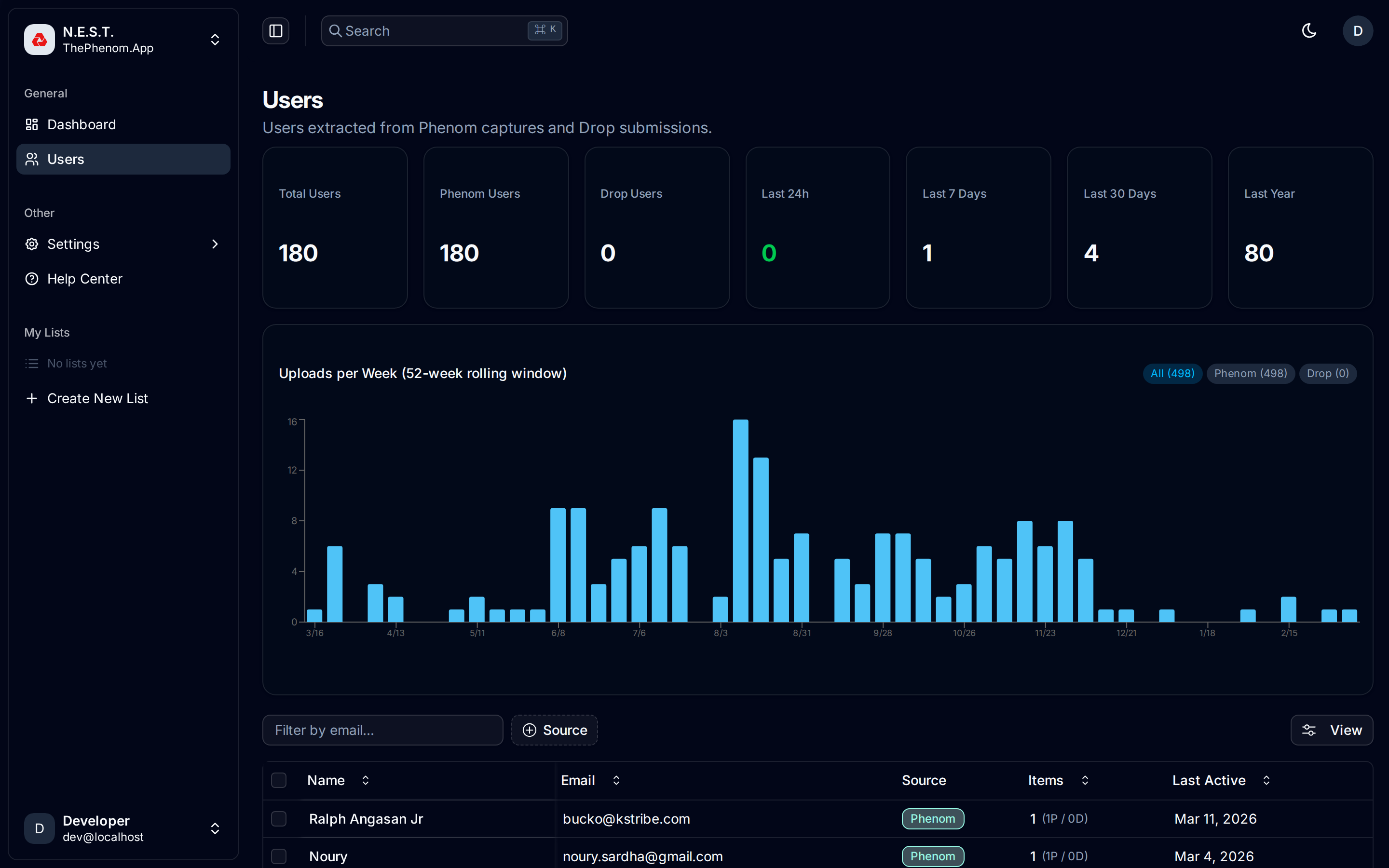
The Users page shows all users extracted from Phenom captures and Drop submissions. Navigate to it via the sidebar: General > Users.
Statistics Cards
Seven cards displayed across the top of the page:
| Card | Description |
|---|---|
| Total Users | All unique users across both sources |
| Phenom Users | Users who submitted Phenom captures |
| Drop Users | Users who submitted Drops |
| Last 24h | New users in the past day (green text) |
| Last 7 Days | New users this week |
| Last 30 Days | New users this month |
| Last Year | New users this year |
Users Table
The table below the chart displays all known users with these columns:
| Column | Description |
|---|---|
| Select | Checkbox for bulk selection |
| Name | User’s display name |
| Email address | |
| Source | Badge showing “Phenom” (cyan) or “Drop” (amber) |
| Items | Total count with breakdown (e.g., “1 (1P / 0D)”) |
| Last Active | Most recent activity date |
Table Features: Search by email, filter by source, sort by column headers, pagination, show/hide columns via the View button.
14. User Stats & Analytics
The Uploads per Week chart is shown on the Users page between the stat cards and the user table.
Upload Chart
The chart shows a 52-week rolling window of uploads:
- Filter buttons: “All”, “Phenom”, “Drop” with counts in parentheses
- Active filter is highlighted in cyan
- Phenom bars are cyan, Drop bars are amber
- Click a bar to expand and see individual events for that week
- The expanded panel shows:
- Week label (“Week of 3/1”)
- Event count
- Each event with: source badge, username, country code, date
- Click any event to navigate to its marker on the dashboard
15. Global Search (Command Palette)
Press Cmd+K (Mac) or Ctrl+K (Windows/Linux) to open the global search command palette. The search icon and shortcut hint are visible in the top-right of every page (see dashboard screenshot).
What You Can Search
| Category | Searchable Fields |
|---|---|
| Markers | Filename, owner name, file hash, C2PA status, issuer, claim generator, file type, location address |
| Navigation | Dashboard, Users, Settings, Help Center |
| Theme | Switch between Light and Dark mode |
Search Results
Each marker result shows:
- Label: Emoji + filename (Drops) or owner name (Phenoms) with “Drop” or “Phenom” prefix
- Details: Coordinates, address, file hash preview, timestamp
- Click a result to navigate directly to that marker on the map
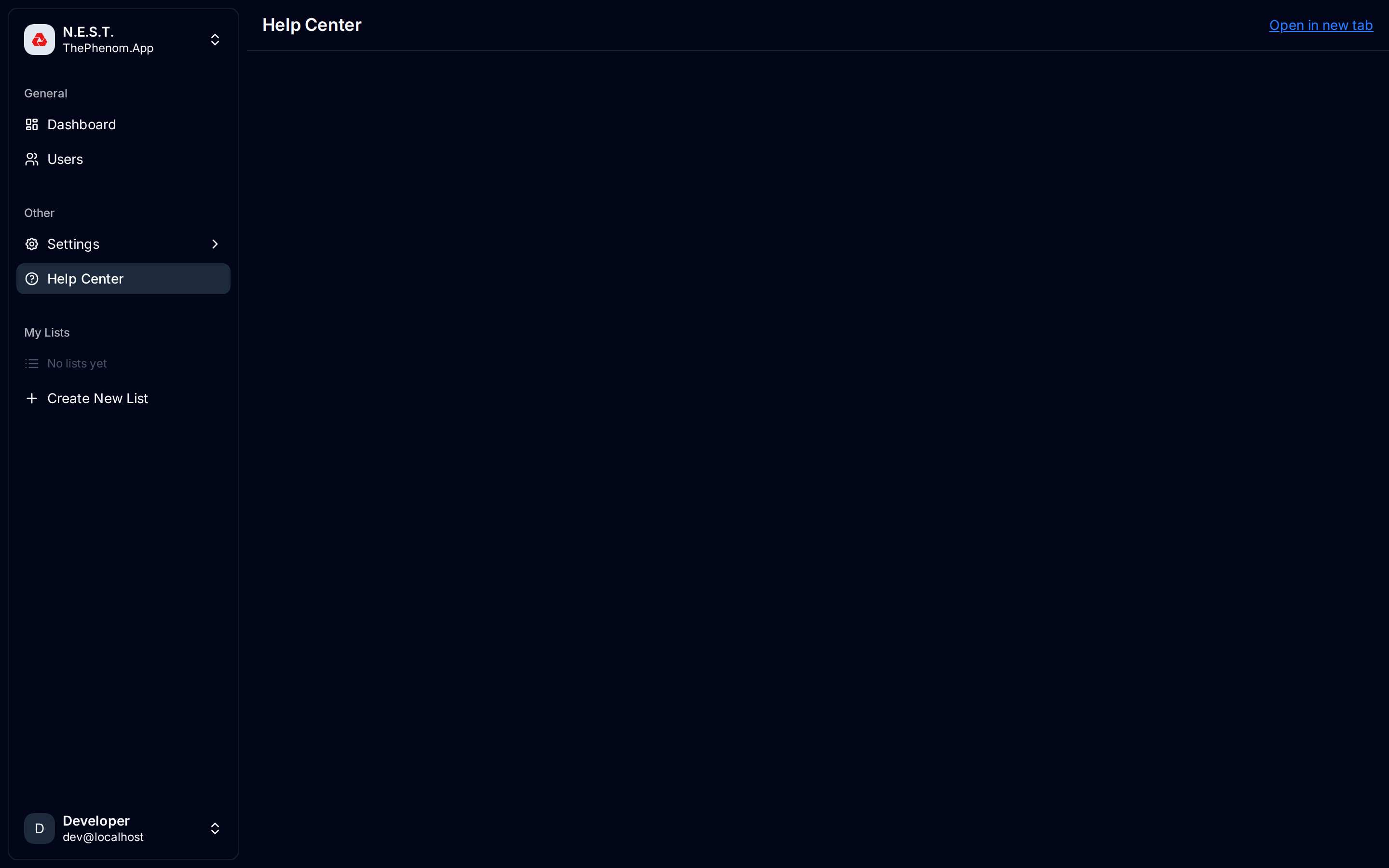
16. Using the Help Center
The Help Center embeds the internal documentation site directly within N.E.S.T. Navigate via the sidebar: Other > Help Center.
Features
- Embedded docs: The full int-docs.thephenom.app documentation is displayed in an iframe
- Open in new tab: Click the blue link in the header to open the docs in a separate browser tab
- Full navigation: Browse all documentation sections without leaving N.E.S.T.
17. Settings
Access settings via the sidebar: Other > Settings or through the user dropdown menu.
Profile Settings
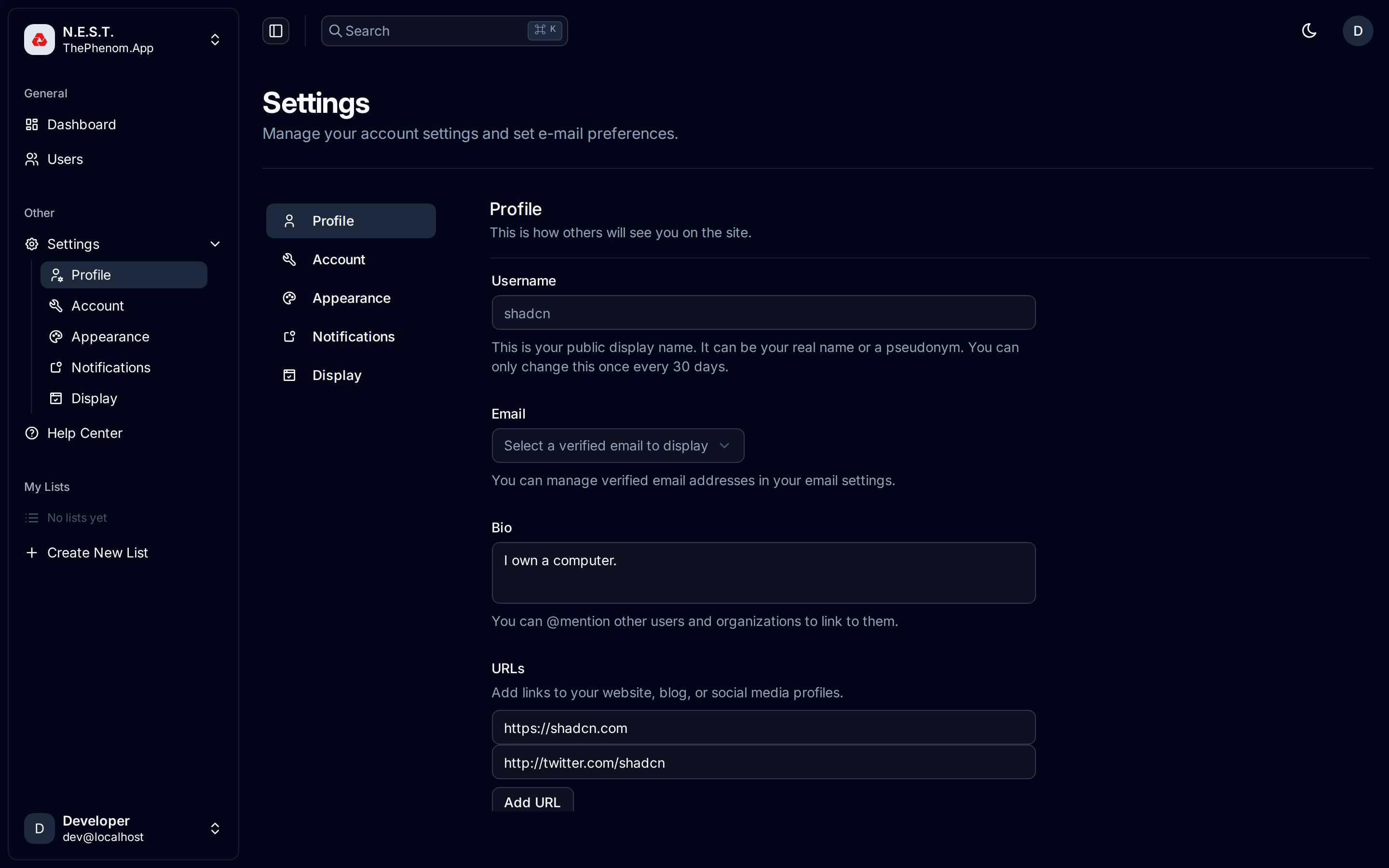
| Field | Description |
|---|---|
| Username | Your public display name (changeable once per 30 days) |
| Select from verified email addresses | |
| Bio | Short description (max 160 characters). Supports @mentions |
| URLs | Add links to your website, blog, or social profiles. Click “Add URL” for more fields |
Notification Settings
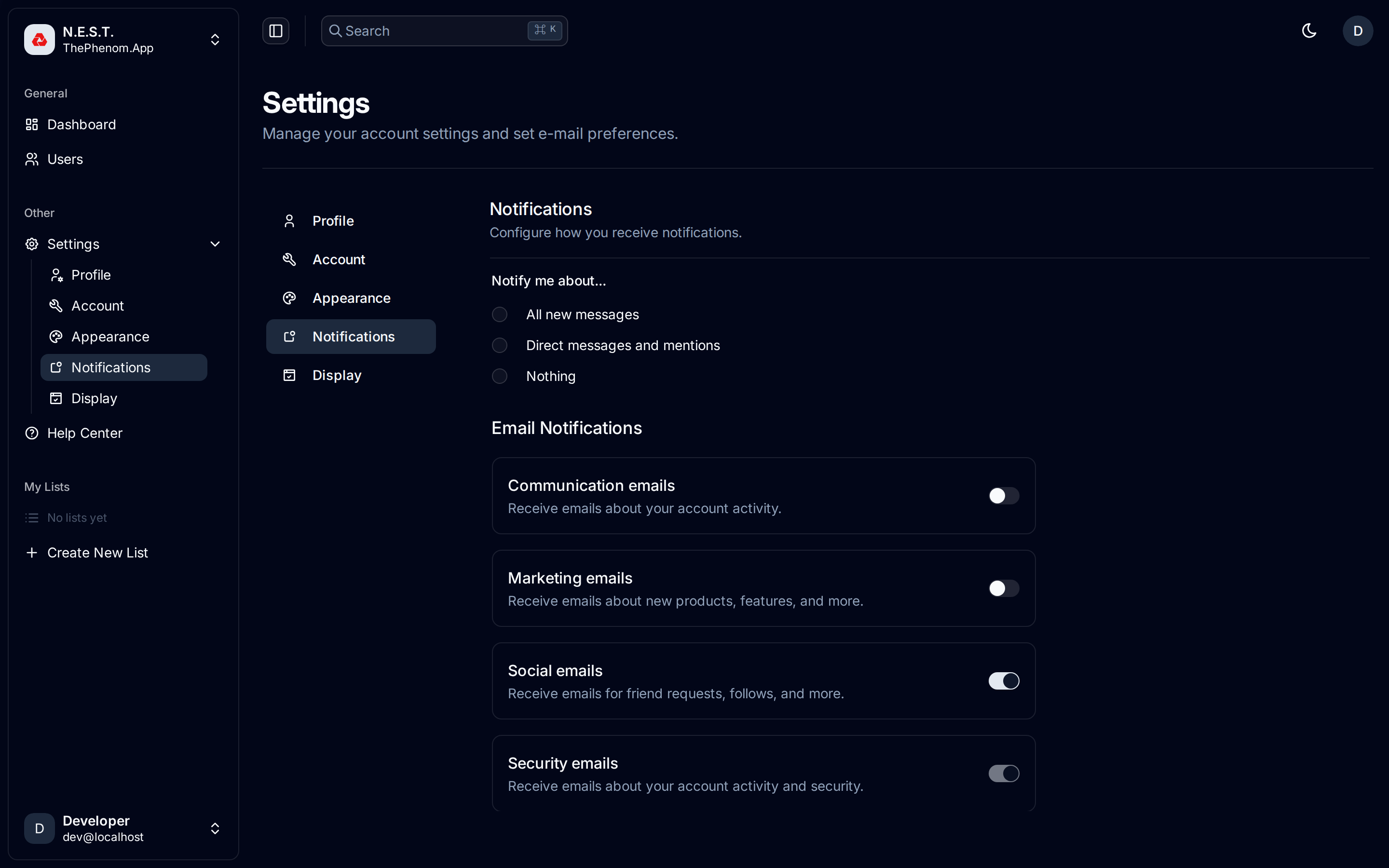
Notification Type (radio buttons):
- All new messages
- Direct messages and mentions
- Nothing
Email Notifications (toggle switches):
| Toggle | Default | Notes |
|---|---|---|
| Communication emails | Off | Account activity emails |
| Marketing emails | Off | Product updates and features |
| Social emails | On | Friend requests, follows |
| Security emails | On | Always on (cannot be disabled) |
Mobile: Checkbox to use different settings for mobile devices.
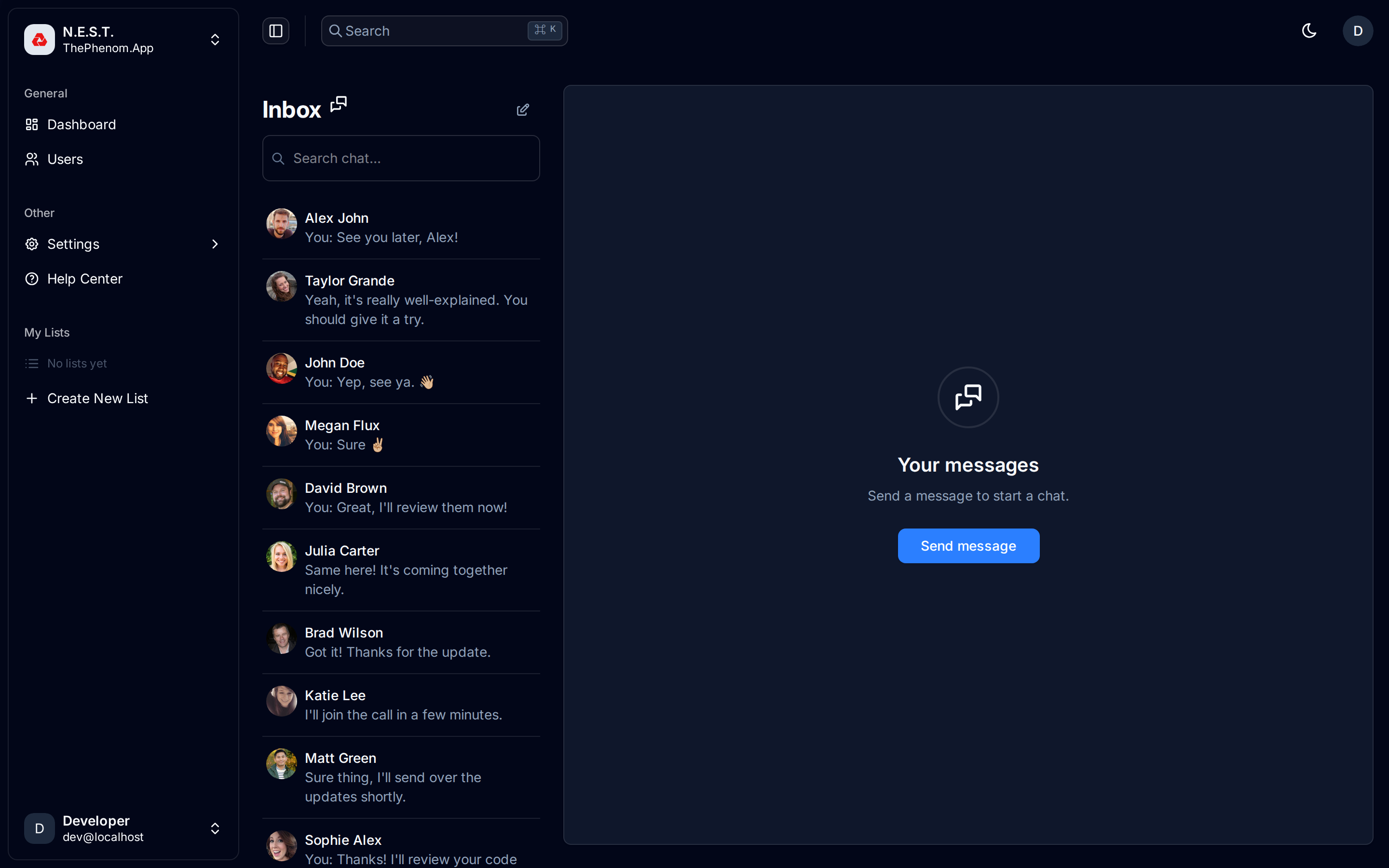
18. Messaging / Chats
Access via sidebar navigation if enabled in your display settings.
Features
| Feature | Description |
|---|---|
| Inbox | Searchable list of conversations |
| Message Thread | Messages grouped by date |
| Compose | Text input with send button |
| Attachments | Buttons for file/media attachments |
| Call Buttons | Video and phone call icons (UI present) |
| New Conversation | Dialog to start a new chat with team members |
19. Logging Out
How to Log Out
- Click your avatar in the bottom-left corner of the sidebar (shows “Developer / dev@localhost” in the dashboard screenshot)
- A dropdown menu appears showing:
- Your name and email
- Shared With Me (notification count)
- Account, Billing, Notifications links
- Click Log out at the bottom
- You are redirected to the Cloudflare Access logout page (
/cdn-cgi/access/logout) - Your session cookie is cleared
Note: Logging out clears your Cloudflare Access session. You will need to re-authenticate with GitHub on your next visit.
Quick Reference
Keyboard Shortcuts
| Shortcut | Action |
|---|---|
| Cmd/Ctrl + K | Open command palette (global search) |
Color Legend
| Color | Meaning |
|---|---|
| Cyan / Sky Blue | Phenom-related data, active toggle states, trusted C2PA status |
| Amber / Orange | Drop-related data, non-trusted C2PA status |
| Magenta / Violet | AI-generated content detected |
| Green | Last 24h stats, positive indicators |
| Red | Invalid C2PA, delete actions, notification badges |
Navigation Map
Sidebar
├── General
│   ├── Dashboard (3D Globe Map)
│   └── Users (User Management & Analytics)
├── My Lists
│   ├── [Your Lists] (expandable with items)
│   └── + Create New List
├── Other
│   ├── Settings
│   │   ├── Profile
│   │   └── Notifications
│   └── Help Center
└── User Avatar (bottom-left)
    ├── Shared With Me
    ├── Notifications
    └── Log Out
Feedback
Was this page helpful?
Glad to hear it! Please tell us how we can improve.
Sorry to hear that. Please tell us how we can improve.